Lab Work
In this lab, I will use the Linux command line to identify servers running on a given computer.
- Part 1: Servers
- Part 2: Using Telnet to Test TCP Services
Equipment
- Virtual Machine with Linux distribution (In this Lab, I am using Arch Linux distribution)
Part 1: Servers
Servers are essentially programs written to provide specific information upon request. Clients, which are also programs, reach out to the server, place the request, and wait for the server response. Many different clientserver communication technologies can be used, with the most common being IP networks. This lab focuses on IP network-based servers and clients.
Step 1:
I log into my Virtual Machine Workstation and accessed my terminal.
Step 2:
Their are many different programs running on a given computer, I then displayed the running programs with the sudo ps -elf command.
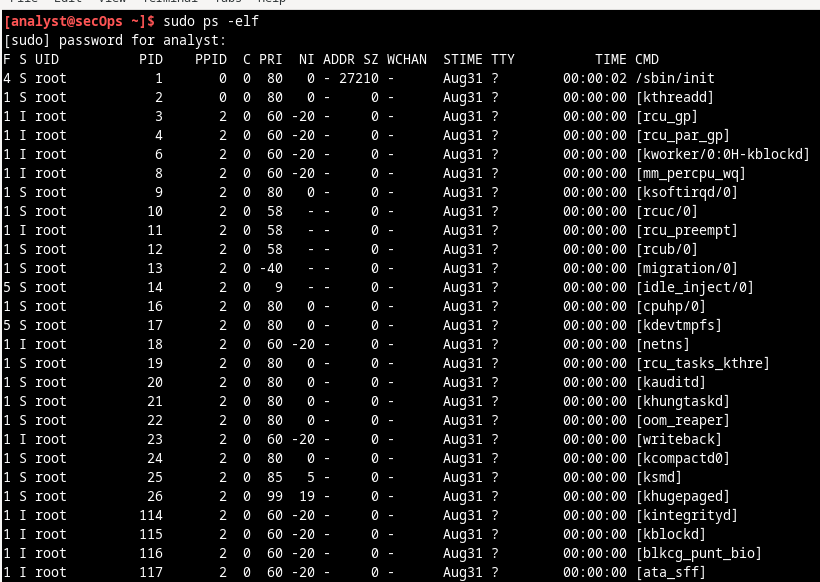
I used the sudo before the ps command to get root previlage
In Linux, programs can also call other programs. The ps command can also be used to display such process hierarchy. I used –ejH options to display the currently running process tree after starting the nginx webserver with elevated privileges
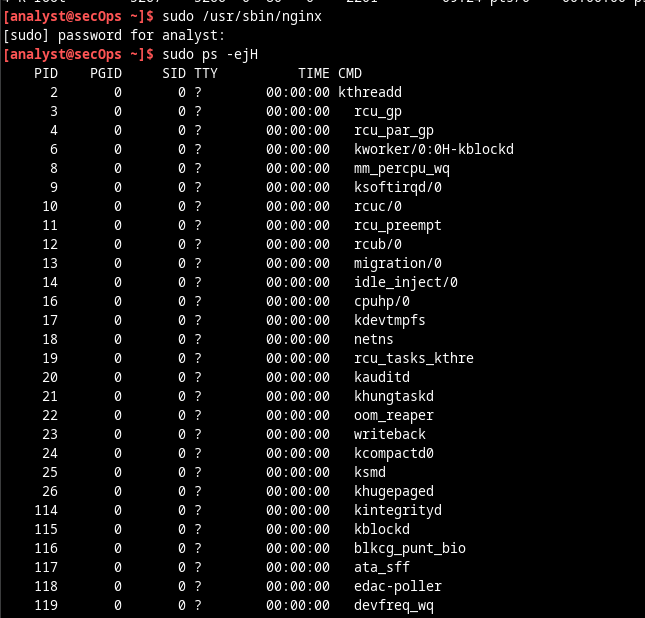
In normal ps command we have to look manually on Process ID (PID) and parent process ID (PPID) number to know the relation between processes. In hierarchial format, child processes are shown under the parent process which makes it easy for us to look upon.
As mentioned before, servers are essentially programs, often started by the system itself at boot time. The task performed by a server is called a service. In such fashion, a web server provides web services. The netstat command is a great tool to help identify the network servers running on a computer. The power of netstat lies on its ability to display network connections. Output maybe different depending on the number of open network connections on your VM.
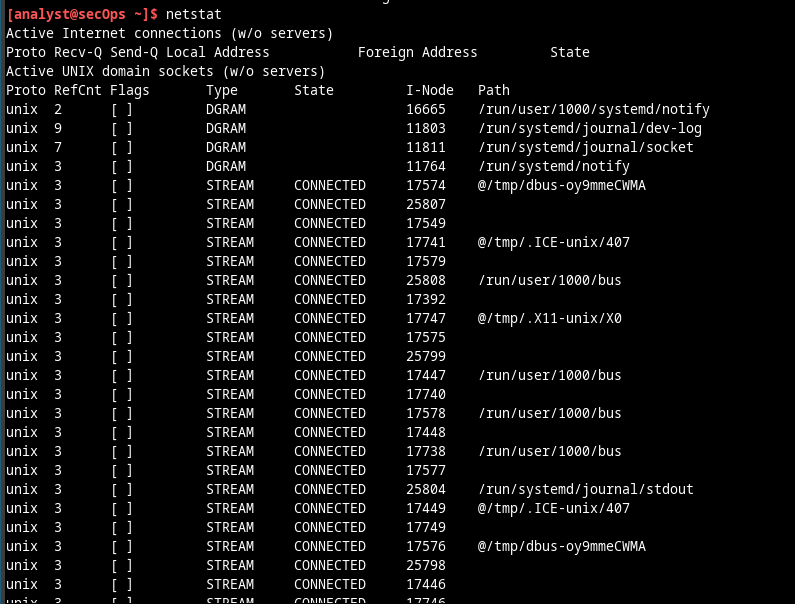
As seen above, netstat returns lots of information when used without options. Many options can be used to filter and format the output of netstat, making it more useful.
I used netstat with the –tunap options to adjust the output of netstat. Notice that netstat allows multiple options to be grouped together under the same “-“ sign.
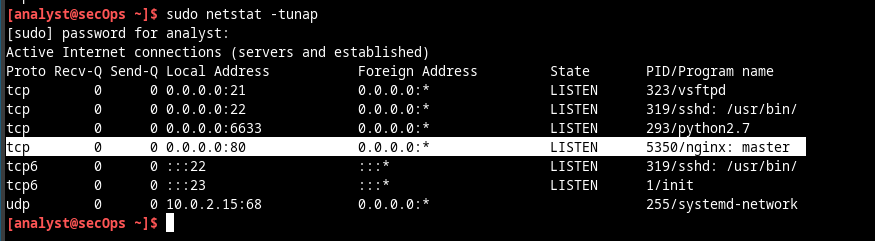
Use man netstat to view the manual and more options on how to adjust the output of netstat
Clients will connect to a port and, using the correct protocol, request information from a server. The netstat output above displays a number of services that are currently listening on specific ports. Interesting columns are:
The first column shows the Layer 4 protocol in use (UDP or TCP, in this case). The third column uses the '<'ADDRESS:PORT> format to display the local IP address and port on which a specific server is reachable. The IP address 0.0.0.0 signifies that the server is currently listening on all IP addresses configured in the computer. The fourth column uses the same socket format '<'ADDRESS:PORT> to display the address and port of the device on the remote end of the connection. 0.0.0.0:* means that no remote device is currently utilizing the connection. The fifth column displays the state of the connection. The sixth column displays the process ID (PID) of the process responsible for the connection. It also displays a short name associated to the process.
Sometimes it is useful to cross the information provided by netstat with ps. Based on the output of item (d), it is known that a process with PID 395 is bound to TCP port 80. Port 395 is used in this example. Use ps and grep to list all lines of the ps output that contain PID 395. Replace 395 with the PID number for your particular running instance of nginx:

In the output above, the ps command is piped through the grep command to filter for only the lines containing the number 395. The result is one line with text wrapping. The process PID 395 is nginx.
nginx is open-source web server software used for reverse proxy, load balancing, and caching. It provides HTTPS server capabilities and is mainly designed for maximum performance and stability. It also functions as a proxy server for email communications protocols, such as IMAP, POP3, and SMTP.
Part 2: Using Telnet to Test TCP Services
Telnet is a simple remote shell application. Telnet is considered insecure because it does not provide encryption. Administrators who choose to use Telnet to remotely manage network devices and servers will expose login credentials to that server, as Telnet will transmit session data in clear text. While Telnet is not recommended as a remote shell application, it can be very useful for quickly testing or gathering information about TCP services
The Telnet protocol operates on port 23 using TCP by default. The telnet client however, allows for a different port to be specified. By changing the port and connecting to a server, the telnet client allows for a network analyst to quickly assess the nature of a specific server by communicating directly to it.
Note: It is strongly recommended that ssh be used as remote shell application instead of telnet.
In Part 1, nginx was found to be running and assigned to port 80 TCP. Although a quick internet search revealed that nginx is a lightweight web server, how would an analyst be sure of that? What if an attacker changed the name of a malware program to nginx, just to make it look like the popular webserver? I used telnet to connect to the local host on port 80 TCP:
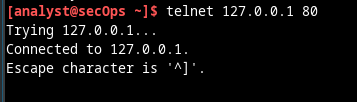
Press a few letters on the keyboard. Any key will work. After a few keys are pressed, press ENTER. Below is the full output, including the Telnet connection establishment and the random keys pressed (sdf, this case):
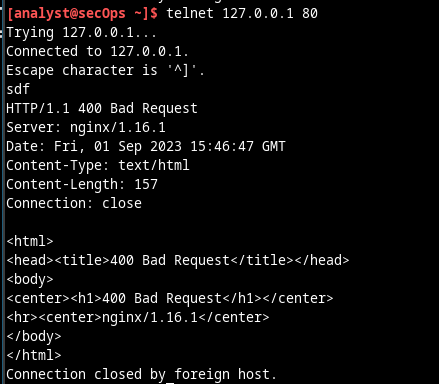
Thanks to the Telnet protocol, a clear text TCP connection was established, by the Telnet client, directly to the nginx server, listening on 127.0.0.1 port 80 TCP. This connection allows us to send data directly to the server. Because nginx is a web server, it does not understand the sequence of random letters sent to it and returns an error in the format of a web page.
While the server reported an error and terminated the connection, we were able to learn a lot. We learned
that:
1) The nginx with PID 395 is in fact a web server.
2) The version of nginx is 1.16.1.
3) The network stack of my Workstation VM is fully functional all the way to Layer 7.
Not all services are equal. Some services are designed to accept unformatted data and will not terminate
if garbage is entered via keyboard. Below is an example of such a service:
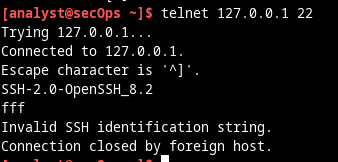
Looking at the netstat output presented earlier, it is possible to see a process attached to port 22. Use
Telnet to connect to it.
Port 22 TCP is assigned to SSH service. SSH allows an administrator to connect to a remote computer
securely.
Below is the output: